Save practices as connections
Keep an address book of the labs and practices you send to, and pick them on the work order form.
Written for Labs and practices sending cases
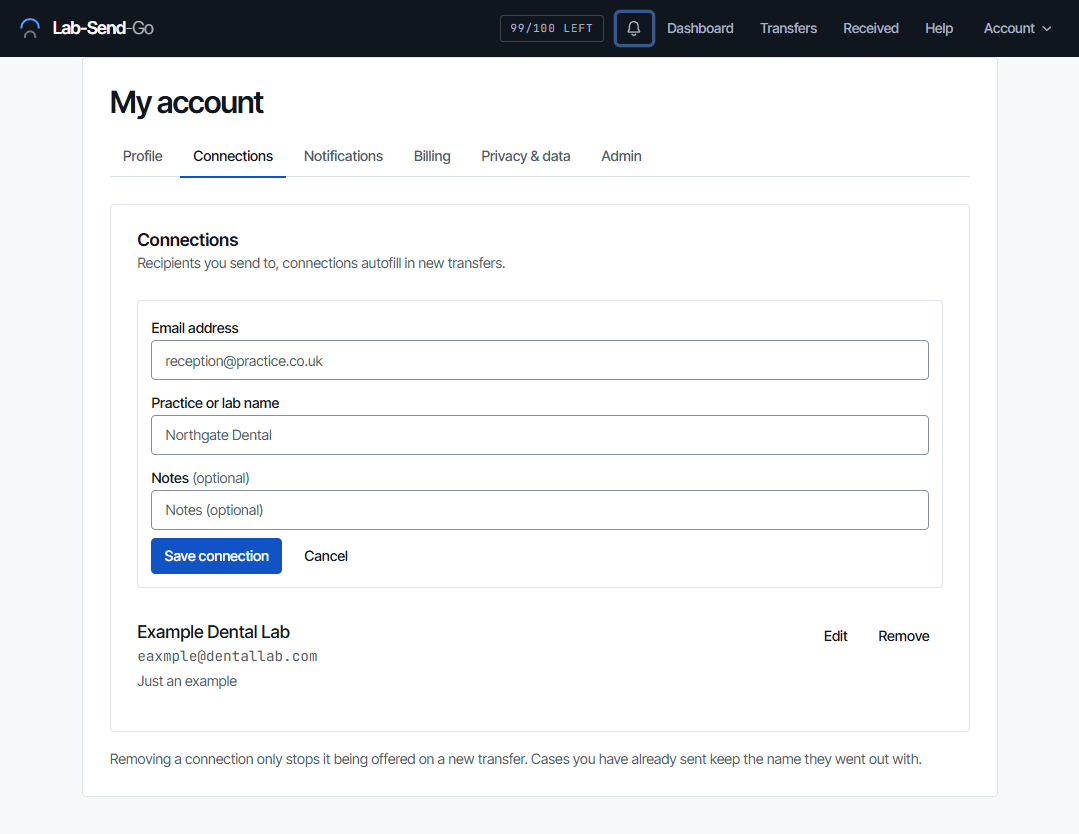
Connections are your address book: the labs and practices you send to, each saved as one email address with a practice or lab name. They are offered whenever you type a recipient, so you do not have to remember addresses. Sending a transfer never adds a connection by itself; you choose what to save.
How do I add a connection?
From My account → Connections:
- Enter the Practice or lab name and the email address.
- Add Notes if you like, such as a contact name or opening hours. Notes are for you only.
- Select Save connection.
You can also save one while sending: next to a recipient that is not saved yet, select Save to connections. On a transfer's page, select Save to connections beside a recipient.
How do I pick a connection when sending?
Start typing in a recipient's email or name box. Saved connections that match the name or the address appear in a list. Pick one to fill in both the address and the name. You can still type any address that is not saved.
How do I rename a connection or change its address?
- Name or notes: edit them on the Connections tab. If you add an address that is already saved, the form says Already saved as … and the button becomes Update connection.
- When sending: if you type a different name for a saved address, the form offers Update saved name. It only changes the connection if you select it.
- Address: an address cannot be edited, because a different address is a different recipient. Remove the connection and save the new address.
What happens if I remove a connection?
It stops being offered on new transfers. Transfers you have already sent keep the name they went out with, and their links are not affected.
Related articles
Still need help?
Email support@lab-send-go.com and tell us what you were trying to do. Never include a patient's name or a download link in your message.