Fill in a work order
Case details, work items, the tooth chart, shades, account defaults, templates and saving a draft.
Written for Labs and practices sending cases
The work order is the clinical instruction that travels with the scan files. The recipient sees it on the download page and can download it as a PDF ticket. This article covers the Expert work order. Simple mode needs only a case reference, the recipients and the files.
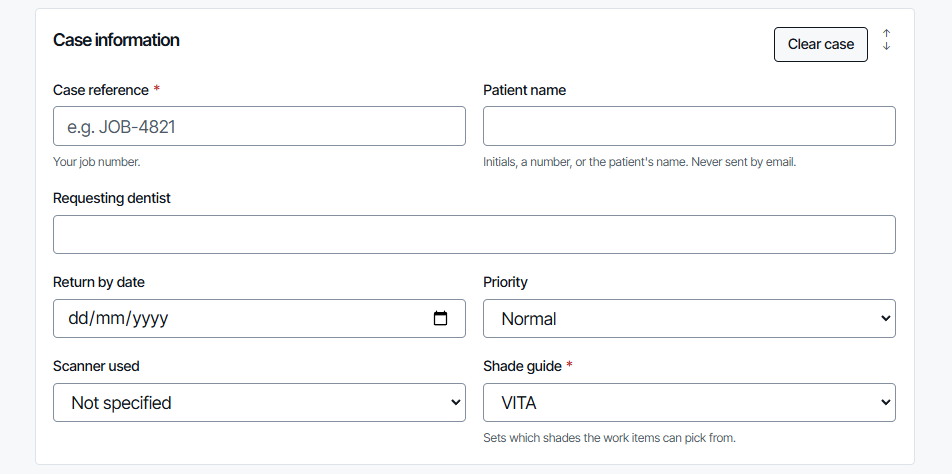
Case information
- Case reference
- Your own job number. It appears in email subjects and on both sides' lists, so never put a patient's name here.
- Patient name
- Optional: initials, a number or the patient's name. It is treated as health data. It appears only on the work order, the download page and the PDF, all behind the secure link, and is never sent in an email.
- Requesting dentist
- The clinician the work is for.
- Return by date
- When you need the work back. It cannot be in the past.
- Priority
- Normal, Rush or Urgent.
- Scanner used
- The intraoral scanner the case was taken on.
- Shade guide
- The guide the shades were matched against, such as VITA Classical. Choose it before any shades: it decides which shades the work items can offer. If you click a shade first, the form takes you to the shade guide field.
Work items
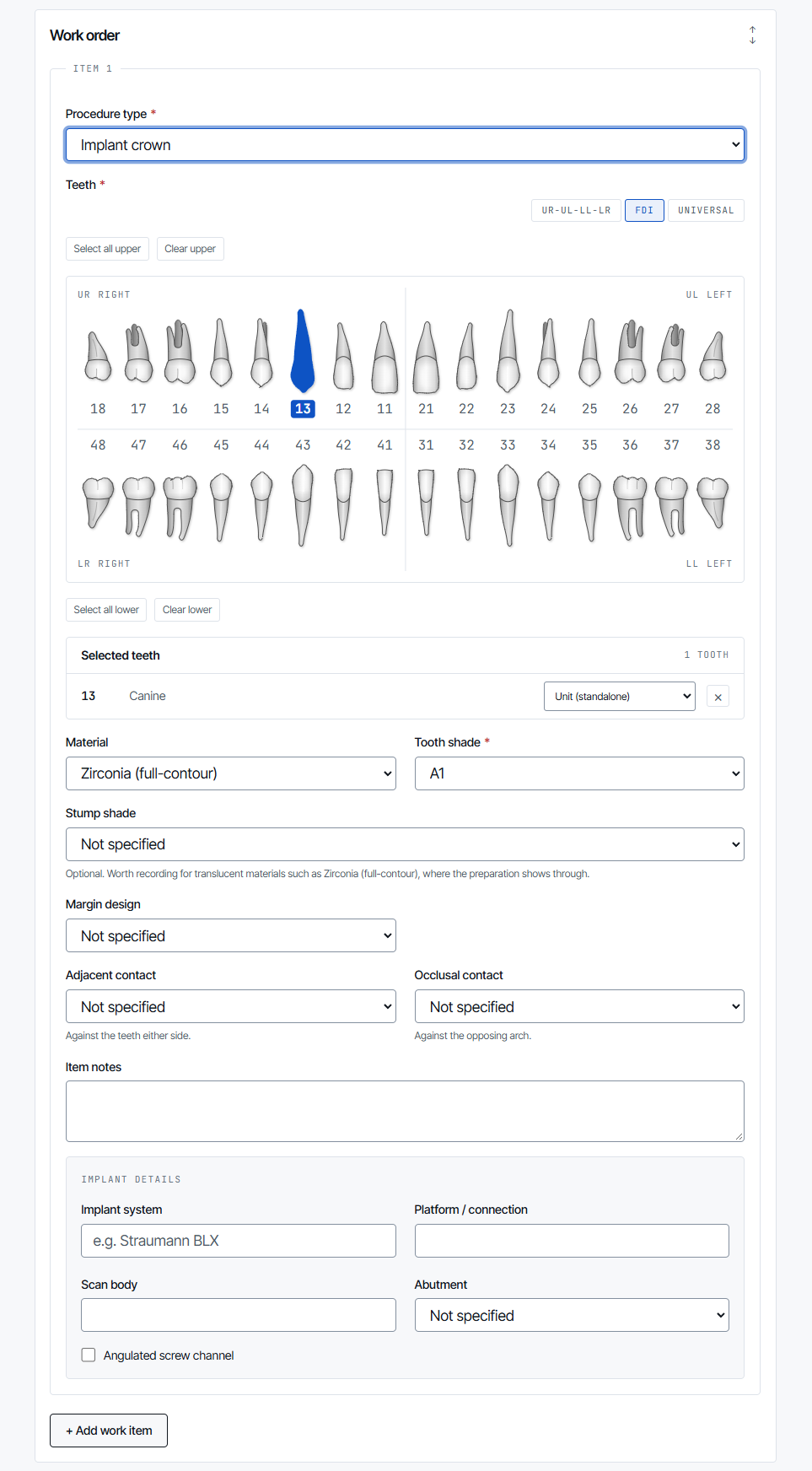
A work item is one restoration or appliance, such as a crown on UR6 or a full upper denture. Select + Add work item for each one. For each item:
- Choose the Procedure type. The rest of the item adapts to it: a bleaching tray, for example, does not offer a material or shades.
- Choose the Teeth on the chart, or the Arch (upper or lower) for full-arch work.
- Fill in what the procedure allows: Material, Tooth shade, Stump shade (optional, useful for translucent materials such as zirconia), Margin design, Pontic design, Adjacent contact and Occlusal contact.
- For implant work, add the Implant system, Platform / connection, Scan body and Abutment.
- Add anything else in Item notes.
Changing an item's procedure clears any answers the new procedure does not use, so nothing hidden is sent by mistake.
Using the tooth chart
- Select teeth by clicking them. Use Select all or Clear for an arch.
- The chart shows the mouth as you face the patient, so the patient's right is on the left of the chart. A selected tooth turns blue and its number is highlighted. A faded tooth with a dashed outline is already used by another work item on the same case; hover over it to see which one.
- Each selected tooth has a role: Unit (standalone), Retainer (bridge abutment), Pontic (suspended tooth), Abutment (implant), Clasp or Rest. For a bridge, mark the anchoring teeth as retainers and the missing teeth as pontics.
- Switch the Tooth notation between Palmer, FDI and Universal. Your choice is remembered and is also used on your work order PDFs. Teeth are always stored the same way, so the recipient sees them correctly in their own notation.
Case notes
Use Case notes for anything that applies to the whole case rather than to one work item.
Can the form start with my usual shade guide and scanner?
Yes. Set them under My account → Profile → Transfer defaults. Every new transfer opens with them, and so does a lab's inbound form when you fill it in while signed in. Until you choose a default, the shade guide reads Not specified. They never change a draft you have already saved.
How do I use work order templates?
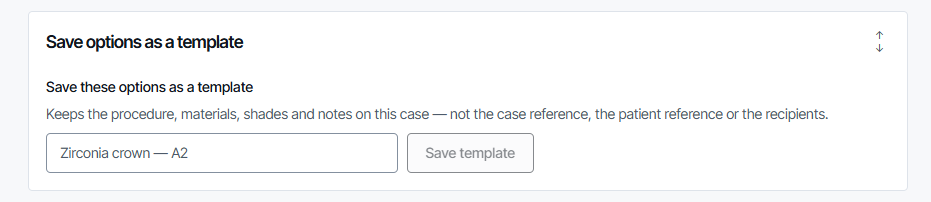
A template saves the clinical answers of a case you do often, such as a zirconia crown with your usual margin and contacts, so you can apply it in one click.
- Fill in a case the way you want the template to look.
- In Save options as a template, give it a name and select Save template. Saving with an existing name replaces that template.
- On a later case, choose it from Start from a template, then confirm Use template.
A template stores work items and clinical options only. It never stores the case reference, patient name, requesting dentist, return date, recipients or teeth, because those differ for every case. Applying a template leaves those fields as they are. Delete templates under My account → Profile → Work order templates.
Which fields are required?
By default an Expert transfer needs a case reference, a recipient name and email, a procedure type, a shade guide where a shade is chosen, a tooth shade, a tooth selection, at least one file and the declaration. A Simple transfer needs the case reference, recipients, files and declaration. On Basic, Pro and Enterprise you can change which fields are required under My account → Profile → Transfer validation.
Mistakes are listed at the top of the form when you continue, and each one links to its field. A recipient email address that looks wrong is flagged as soon as you leave the box.
Can I change the order of the form?
Yes. Under My account → Profile → Transfer defaults, Normal transfer layout lets you move Case information, Work order, Case notes, Files and Save options as a template up or down. Simple and Expert keep separate orders. Select Save layout when you are done.
Saving and finishing later
Use Save as draft at any time, even if the work order is incomplete. Nothing is checked and nothing is charged until you send. To finish a draft, open My Transfers and select Continue. A draft has no work order PDF until it is complete.
Can I change a work order after sending it?
Yes, until anyone downloads it. Open the transfer from My Transfers and select Edit work order. Your correction updates the work order behind the existing link: the link and its expiry stay the same, no new email is sent, and the work order PDF is rebuilt.
Once a recipient has downloaded the case, Edit work order is no longer offered, because the original may already be printed. Let the recipient know and send a corrected transfer. You cannot change the recipients of a sent transfer either; send a new transfer instead.
Related articles
- Send a transfer Send a work order and scan files to a lab or practice: recipients, Simple and Expert mode, uploads, review and send.
- Send several cases at once Use the multi-case uploader to send several cases to the same recipients in one go, and how allowance is counted.
- Manage your account settings My account: account details, security, transfer defaults, validation, file retention, templates, branding and your data.
Still need help?
Email support@lab-send-go.com and tell us what you were trying to do. Never include a patient's name or a download link in your message.