Track and manage sent transfers
Statuses, downloads, resending the link, withdrawing access, restoring an expired transfer and deleting hosted files.
Written for Labs and practices sending cases
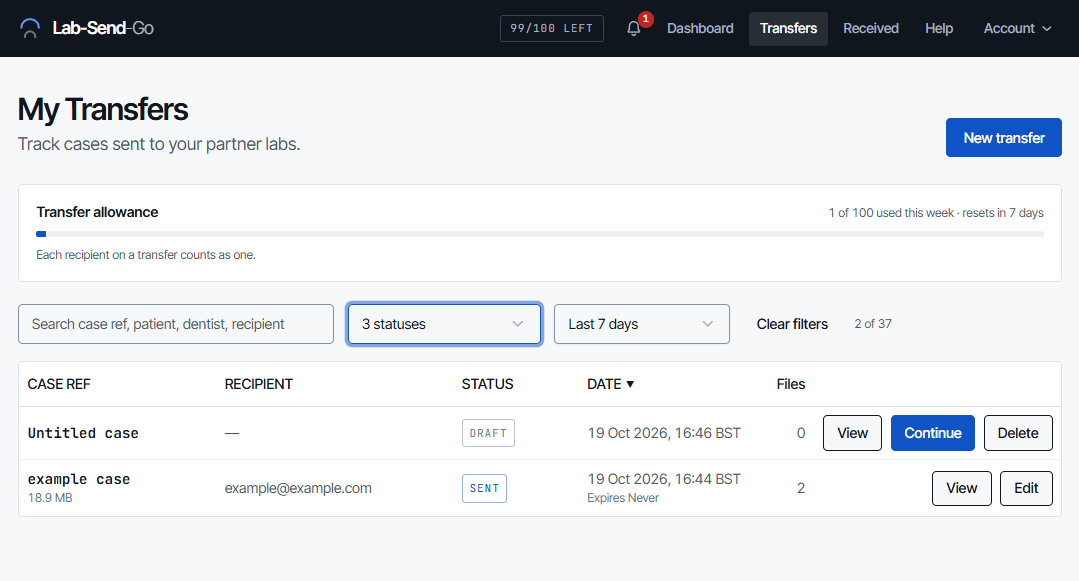
Everything you have sent, and every draft, is in My Transfers. Open any transfer to see who has downloaded it and to manage its link.
Finding a transfer
Search by case reference, patient, dentist or recipient, and filter by status or date (last 7, 30 or 90 days). Each row shows the case reference, recipient, status, date and number of files, with View, Edit or Continue depending on its state. Cases that arrived through an inbound form are marked Inbound.
The status filter takes more than one status: tick Sent on its own to see only what nobody has downloaded yet, or tick several. Your statuses and date range are remembered for your account, so the list opens the same way after a refresh, after signing in again and on another computer. Choose Show all statuses to go back to every status, or Clear filters to reset the search, statuses and date range at once and forget the saved choice. Opening the list from a dashboard card or calendar day shows all of that card's cases, whatever statuses you have ticked.
How far back the list goes depends on your plan:
- Free: 7-day viewable history
- Basic: 90-day viewable history
- Pro: Unlimited viewable history
- Enterprise: Unlimited viewable history
Upgrading shows older transfers again straight away.
What does each status mean?
| Status | Meaning |
|---|---|
| Draft | Not sent yet. Nobody has been notified and no allowance has been used. |
| Sent | The link has been emailed and nobody has downloaded yet. |
| Downloaded | At least one recipient has downloaded. Check the Delivery table to see which. |
| Expired | The download window ended, or your file-retention period passed. The link no longer works. |
| Revoked | You withdrew access. The link no longer works for anyone. |
A transfer whose files have been permanently deleted also shows Files deleted.
How do I know whether a practice has the case?
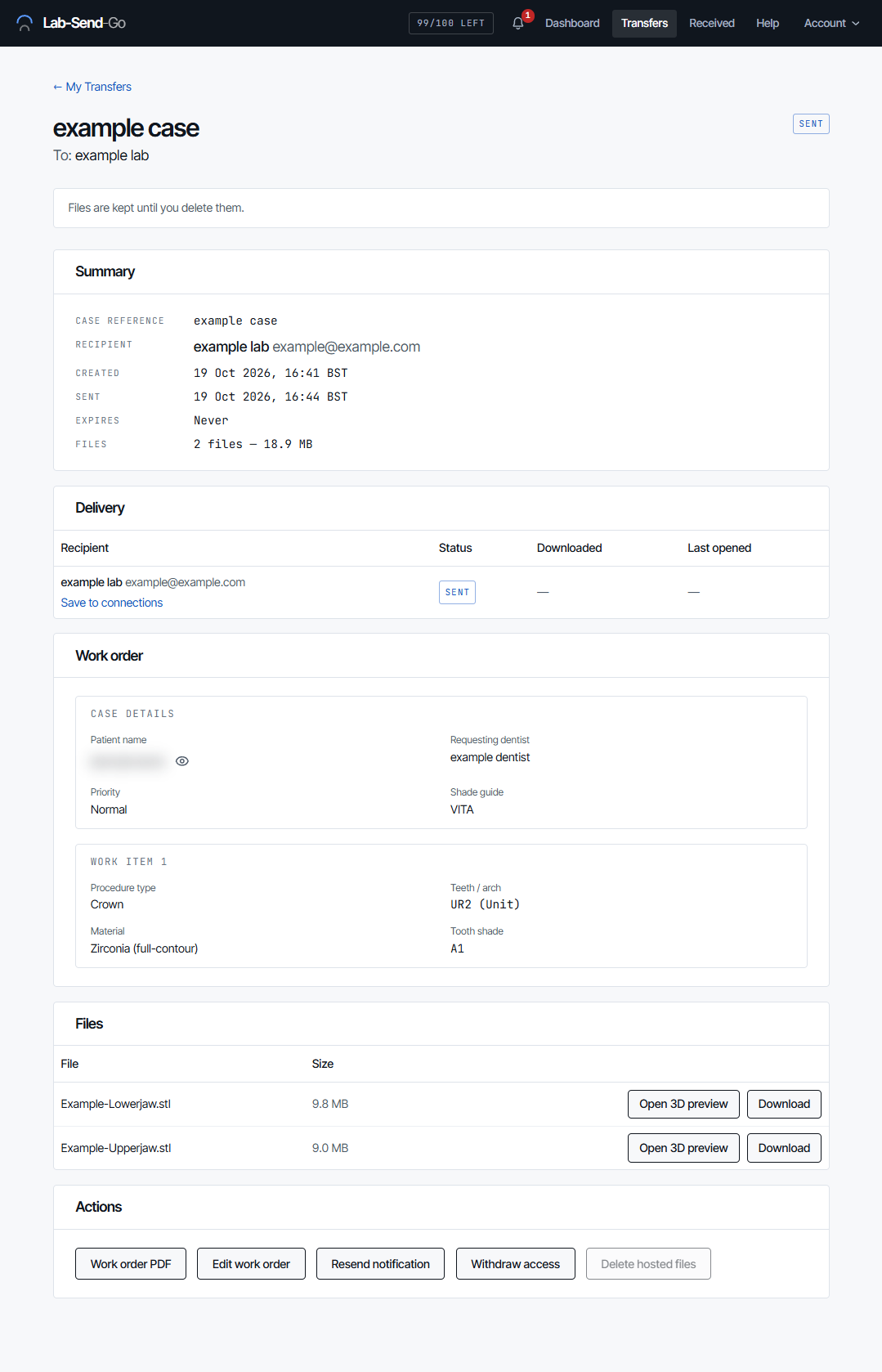
Open the transfer. The Delivery table lists every recipient with their status (Sent, Viewed or Downloaded), when they downloaded and when they last opened it. A recipient who only reads the work order or opens a 3D preview shows as Viewed. They become Downloaded when they download a file, the ZIP or the work order PDF. When a recipient confirms receipt, the row says This address confirmed they have the case, with any note they left. You can also be emailed when a recipient downloads; see Choose your notifications.
Are recipients reminded automatically?
Yes. A recipient who has not downloaded 48 hours after you send is emailed a reminder. If the link will expire, each recipient who has not downloaded is warned the day before, and so are you. Recipients who have already downloaded are not chased.
How do I resend the email?
Select Resend notification on the transfer's page. You can resend once every 24 hours; until then the button shows when it will be available again.
How do I stop a transfer being downloaded?
Select Withdraw access on the transfer's page or on the sent confirmation, type WITHDRAW and confirm. A withdrawn transfer cannot be restored. The link stops working for every recipient and each one is emailed that the transfer was withdrawn. Files already downloaded cannot be recalled. The work order, history and hosted files remain until you delete the files. Withdrawing does not refund allowance.
Can I reopen an expired transfer?
On Pro and Enterprise, yes. Open the expired transfer and select Restore. Every recipient is emailed a new link with a fresh download window from your current plan. The original send date is kept and restoring uses no allowance.
On other plans the page explains that restoring is not included and links to the plans. You cannot restore a transfer:
- that you withdrew (Revoked), or
- whose hosted files have been deleted, by you or by your file-retention period.
Upgrading also extends the download window of every transfer that is still live. It never shortens one. When a link is about to expire, the transfer page shows This transfer expires soon with the date it would last until on a higher plan.
How do I delete the hosted files?
Once a transfer is Revoked or Expired, select Delete hosted files and confirm. The files are permanently deleted and cannot be recovered. The transfer record and history remain, and the transfer can no longer be restored. If the link is still live, withdraw access first.
To have files deleted automatically, set a file-retention period: in the Send options on the Review & send step for one transfer, or as your default under My account → Profile → File retention. See File retention.
How do I delete a draft?
Select Delete draft in the list or on the draft's page and confirm. The draft and any files uploaded to it are removed permanently.
How do I get the work order PDF?
Select Work order PDF on the transfer's page. It is the printable ticket for the technician and carries your branding where your plan includes it. A draft has no PDF until it is finished.
What does the dashboard show?
Your Dashboard has three tabs. Overview shows what needs attention, a calendar of sends, due-back dates and expiries, and recent activity. Transfer analytics shows sending trends. Case analytics summarises the clinical work you have sent, such as procedures and materials. Only you can see your analytics.
Related articles
- Send a transfer Send a work order and scan files to a lab or practice: recipients, Simple and Expert mode, uploads, review and send.
- Plans, allowance and link expiry What each plan includes, how the transfer allowance is counted and resets, when links expire and how to change plan.
- Troubleshooting and common questions Fixes for expired or broken links, missing emails, upload errors, allowance limits, sign-in problems and embedded forms.
Still need help?
Email support@lab-send-go.com and tell us what you were trying to do. Never include a patient's name or a download link in your message.