Sign in and two-factor authentication
Signing in, authenticator apps and email codes, trusted devices, password resets and recovering a lost authenticator.
Written for Everyone
Every Lab-Send-Go account is protected by a password and a second step, called two-factor authentication. A stolen password alone is never enough to open your transfers.
How do I sign in?
- Go to Sign in.
- Enter your Email and Password. Tick Stay signed in for 14 days if this is your own computer.
- Select Sign in.
- On Verify your identity, enter the six-digit code from your authenticator app, or the code we email you if you chose email codes.
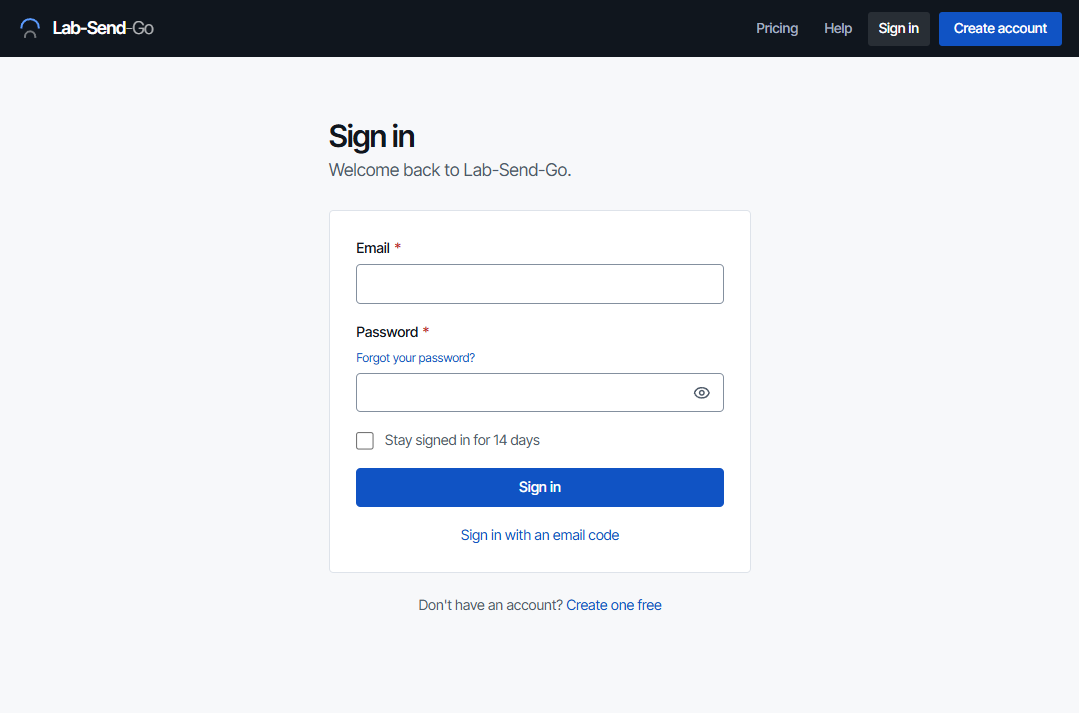
Can I sign in with an email code instead of my password?
Yes. Under the sign-in form select Sign in with an email code, enter your email address and select Email me a code. Enter the six-digit code from the email and select Log in with code. The code works once and expires after 15 minutes. Your second step is still asked for afterwards, exactly as it is when you sign in with a password.
Which two-factor methods can I use?
- Authenticator app (recommended)
- Google Authenticator, Microsoft Authenticator or any other app that shows six-digit time-based codes. During setup scan the QR code, or select Can't scan? Use the manual key and type the key into the app. Treat the manual key like a password until setup is finished.
- A six-digit code is sent to your confirmed email address each time you sign in. Codes expire after 15 minutes, and you can ask for a new one after a short wait. Email is less secure than an app, particularly if the address is a shared inbox such as info@ that several people can read.
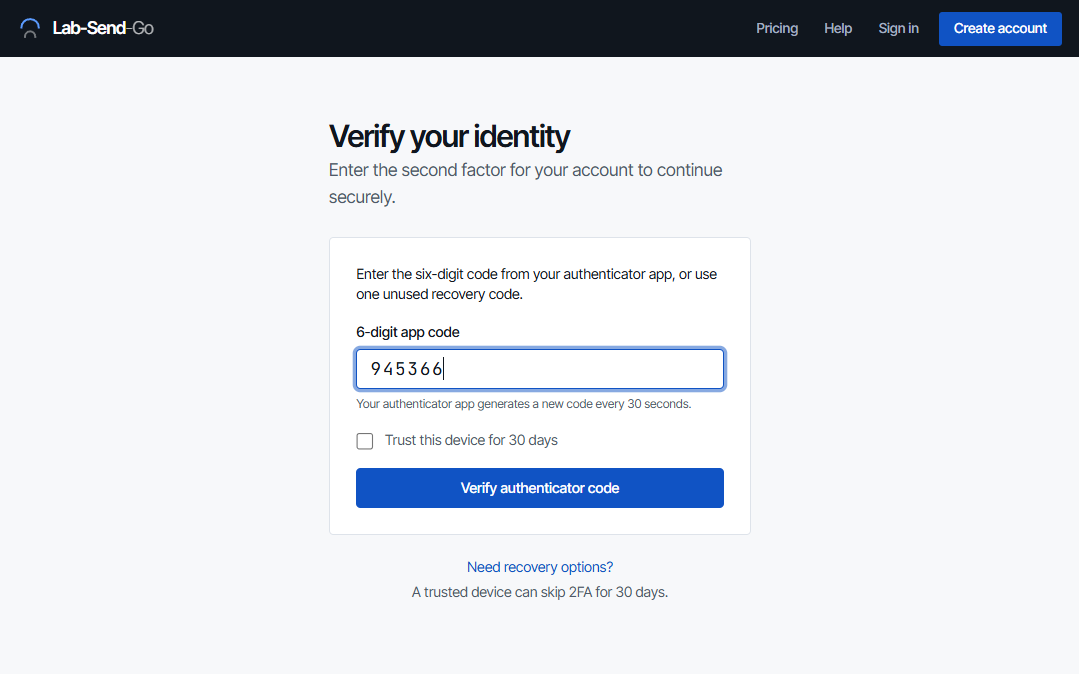
What does "Trust this device" do?
On the Verify your identity page you can tick Trust this device for 30 days. That browser then skips the two-factor step for 30 days. It is off unless you tick it. Only use it on a computer that nobody else uses. Changing your password or your two-factor settings cancels every trusted device.
How do I change or turn off two-factor authentication?
Go to My account → Profile → Security. Under Two-factor authentication you can see your current method.
- Change method takes you through setup again. Your current method keeps working until the new one is verified.
- Disable 2FA needs your current password and a current code. It signs you out, and you must set up two-factor authentication again before you can use the product.
I have forgotten my password
- On the sign-in page select Forgot your password?
- Enter your email address and select Send reset link.
- Open the email, follow the link and choose a new password of at least 10 characters.
For your security we show the same message whether or not an account exists for that address. Resetting your password signs out your other sessions and cancels trusted devices.
I have lost my phone or authenticator app
Use email recovery. It confirms you can read your account's email and then lets you set up two-factor authentication again.
- On the Verify your identity page select Need recovery options?, or go to Account recovery.
- Enter the confirmed email address on your account, leave the code empty, and select Email recovery code.
- Enter the code from the email and select Recover account. The code expires after 15 minutes.
- You are signed in and taken straight to Secure your account. Set up your new phone or choose email codes.
Why can I not sign in after several attempts?
After five wrong attempts in a row, the account is locked for 15 minutes, and repeated attempts from one place are slowed down. Wait and try again, or reset your password. If you still cannot get in, email support from the address on the account.
How do I sign out?
Open the account menu at the top right of any page and select Sign out.
Related articles
- Create your account Register your lab or practice, confirm your email address, accept the agreements and set up two-factor sign-in.
- Manage your account settings My account: account details, security, transfer defaults, validation, file retention, templates, branding and your data.
- Troubleshooting and common questions Fixes for expired or broken links, missing emails, upload errors, allowance limits, sign-in problems and embedded forms.
Still need help?
Email support@lab-send-go.com and tell us what you were trying to do. Never include a patient's name or a download link in your message.