Send a transfer
Send a work order and scan files to a lab or practice: recipients, Simple and Expert mode, uploads, review and send.
Written for Labs and practices sending cases
A transfer is one case: a work order, the scan files that go with it, and a secure download link emailed to each recipient. You can send to any lab or practice by email address. Each recipient needs a Lab-Send-Go account at that address to download it, and creating one is free.
What are the steps?
- Work order & files: add recipients, fill in the case and add the files, then select Review & send. Files upload in the background while you work.
- Review & send: check the summary, choose the send options and select Send transfer →. Any files still uploading finish, then the transfer is sent.
- Transfer sent: the recipients are emailed their link, and you can copy it or manage the transfer.
How do I start a new transfer?
Select New transfer on your Dashboard or on My Transfers. A draft is saved for you as soon as the page opens, so files you upload are kept even if you leave and come back. Drafts are free: nothing counts against your allowance until you send.
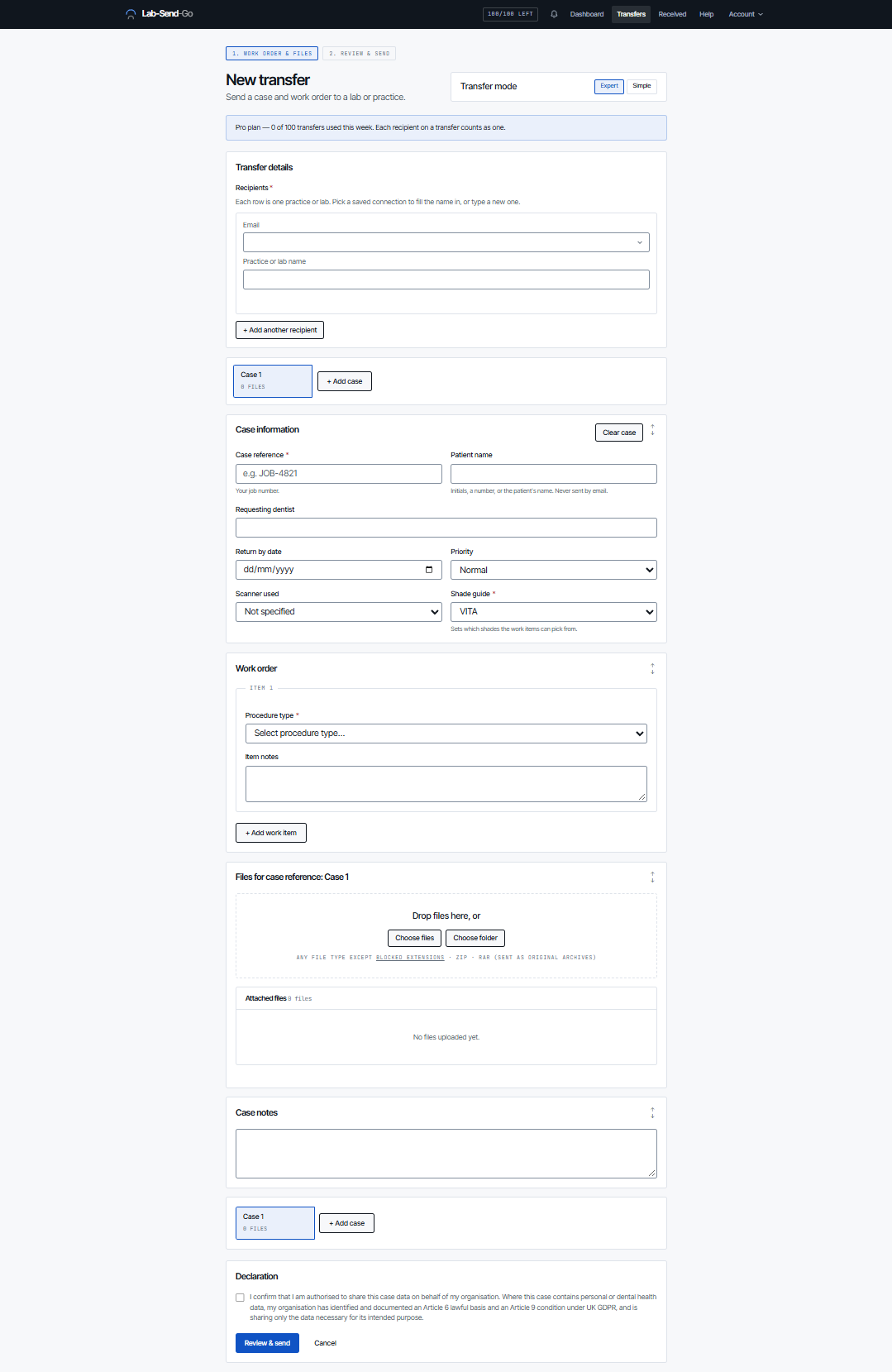
Should I use Simple or Expert mode?
- Expert
- The full clinical work order: requesting dentist, return-by date, priority, scanner, shade guide, and one or more work items with procedure, teeth, material, shades and margin details. Available on every plan.
- Simple
- Just a case reference, the recipients and the files. Use it when the lab already has the clinical detail, or for sending files back. Anything you filled in on the Expert form before switching to Simple is not sent, and does not appear on the work order or its PDF. Simple mode is included on Basic, Pro and Enterprise; on Free it shows an Upgrade link.
Switch with Transfer mode at the top of the form. You can choose which mode new transfers open in under My account → Profile → Transfer defaults. A saved draft always keeps the mode it was created in.
How do I add recipients?
In Recipients, enter each recipient's email address and the practice or lab name. Start typing a name or address to pick from your saved connections. Next to a new address, select Save to connections to remember it for next time.
The number of recipients you can add to one transfer depends on your plan:
- Free: 1 recipient per transfer
- Basic: Up to 3 recipients per transfer
- Pro: Up to 10 recipients per transfer
- Enterprise: Unlimited recipients per transfer
How do I fill in the work order?
Enter the Case reference (your own job number). In Expert mode, also fill in the case details and add work items. The Patient name field is optional and is never included in any email. Full guidance is in Fill in a work order.
How do I upload the scan files?
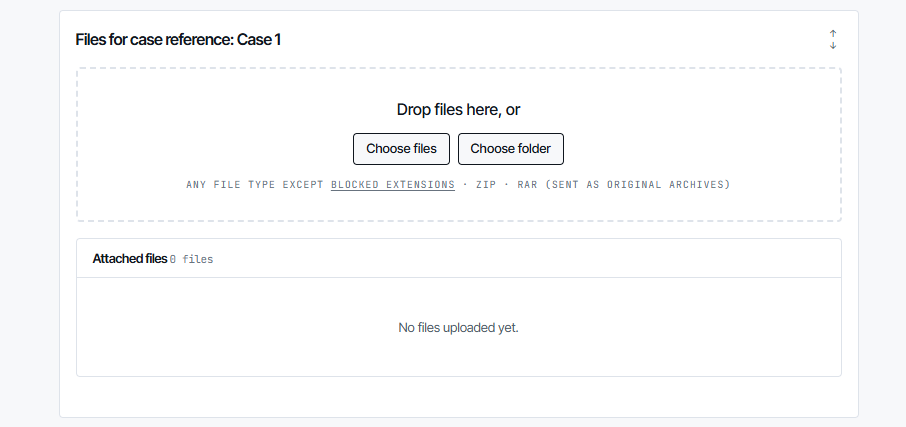
- In the Files section, drag files onto the drop area, or select Choose files or Choose folder.
- Each file starts uploading straight away and shows its progress in the list. You don't need to wait: carry on with the work order while it uploads. You can Pause and Resume large uploads.
- To remove a file, select Remove. It is deleted from storage straight away.
You can upload any file type except blocked ones, such as programs and scripts (.exe, .bat,
.js and similar; see the full list). There is no limit on the number of files. The limit is the total size of the transfer:
- Free: 500 MB max per transfer
- Basic: 1 GB max per transfer
- Pro: 5 GB max per transfer
- Enterprise: 10 GB max per transfer
Uploads are checked for blocked file types before they are attached. On every plan except Enterprise, a short sponsored message appears once, when you send, while any files still uploading finish.
Can I upload a ZIP or RAR file?
Yes. A ZIP or RAR archive uploads in the background like any other file. Once it has uploaded it is checked, which can take a little longer for a large archive, and then attached. Select Browse … archive entries under it to see what is inside, or Remove to take it off. The original archive is sent unchanged, and the recipient can download it whole or open individual files from it. An archive can hold up to 5,000 entries.
Can I check a scan before sending?
STL, OBJ and PLY files, including ones inside an archive, show an Open 3D preview button. The model opens in a viewer on the same page: drag to rotate, scroll to zoom and right-drag to pan.
What is the declaration?
Before you continue you confirm that you are authorised to share the case on behalf of your organisation and that, where the case contains personal or dental health data, your organisation has a lawful basis under UK GDPR and is sharing only what is needed. You confirm it for every transfer, and each confirmation is kept in your data export.
What can I set before sending?
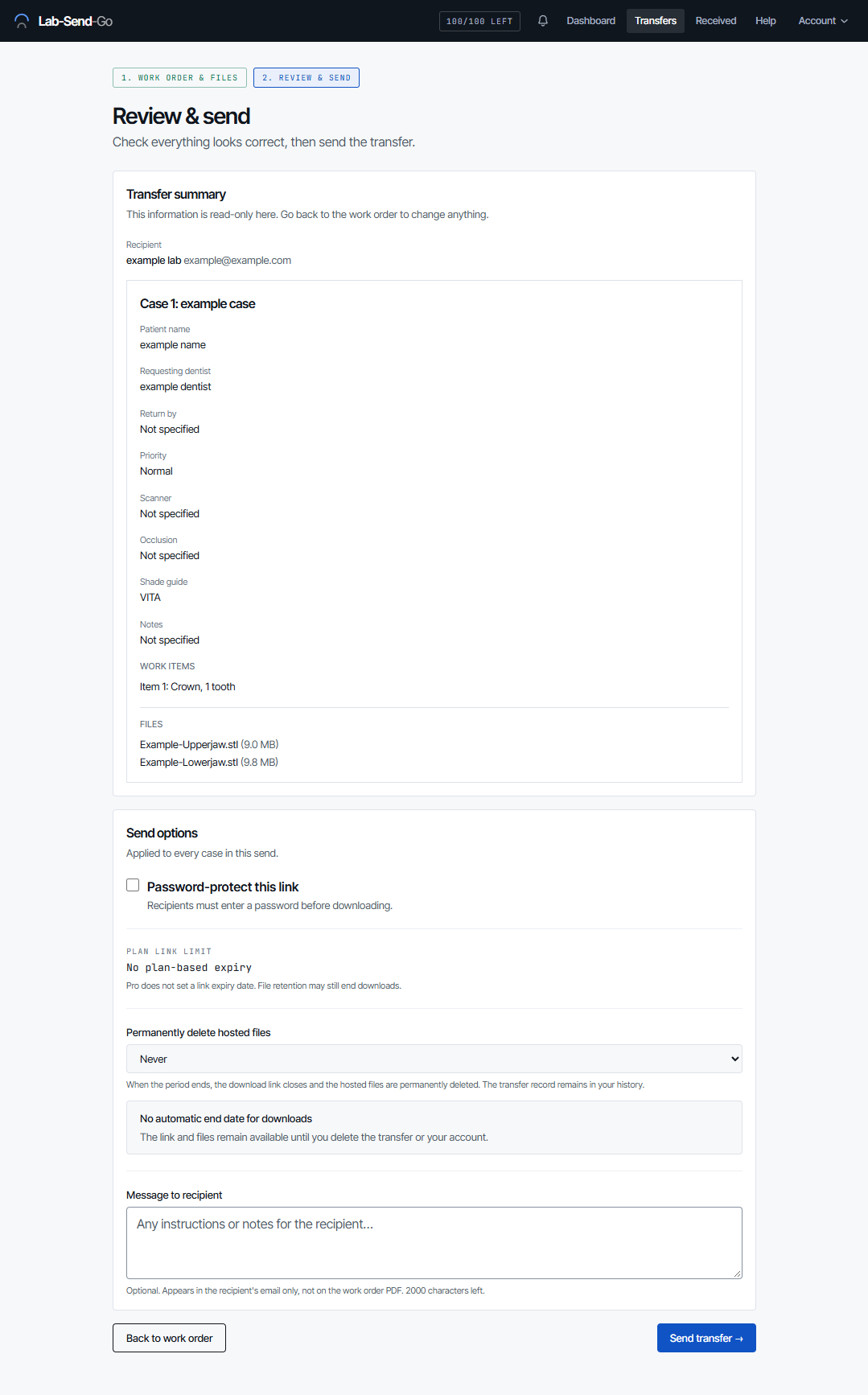
Select Review & send at the bottom of the work order. The page shows a summary of the recipients and every case and file, and Send options, which apply to the whole transfer. Files still uploading keep going while you review; you stay on the same page. To change recipients or anything in a case, select Back to work order; nothing you entered is lost. In Send options you can:
- Password-protect this link. Recipients must also enter the password before downloading. Share it with them separately, for example by phone. Included on Basic, Pro and Enterprise.
- Permanently delete hosted files after 7, 30 or 90 days. When the period ends the link closes and the files are deleted for good. The option starts from your file-retention setting in My account.
- Add a Message to recipient of up to 2,000 characters. It appears in the email only, not on the work order PDF.
Then select Send transfer →. If any files are still uploading, a progress window shows while they finish, and the transfer is sent as soon as they have. The bar shows how much of the transfer has uploaded and about how long is left. If a sponsored message is showing, the window counts down the few seconds before it continues to the Transfer sent page. Once you select Send, it can't be cancelled. Keep the page open until it moves on by itself: closing or reloading it may stop the uploads and affect your transfer, so your browser asks before it lets the page close. If a file needs you, for example an upload failed or was paused, the window closes and the page takes you back to the work order, on that file.
What happens when I send?
- Every recipient is emailed a download link. The email subject includes your case reference but never the patient.
- The Transfer sent page shows the link, which you can copy with Copy link, and the work order PDF.
- The transfer appears in My Transfers, where you can see when each recipient downloads it.
- You are notified when recipients download or confirm receipt, depending on your notification settings.
How long does the link work?
The download window starts when you send, and depends on your plan:
- Free: Links expire in 2 days
- Basic: Links expire in 30 days
- Pro: Links never expire
- Enterprise: Links never expire
Recipients who have not downloaded are reminded automatically, and you are warned shortly before a link expires. See Track and manage sent transfers.
What if I leave the page before sending?
If you click away with unsaved changes, you are asked whether to Save draft or Leave without saving. Files that have finished uploading are kept with the draft; a file still uploading when you leave stops, and needs adding again. Saved drafts are listed in My Transfers as Draft. Select Continue to finish one later, or Delete draft to remove it and its files.
Related articles
- Fill in a work order Case details, work items, the tooth chart, shades, account defaults, templates and saving a draft.
- Track and manage sent transfers Statuses, downloads, resending the link, withdrawing access, restoring an expired transfer and deleting hosted files.
- Plans, allowance and link expiry What each plan includes, how the transfer allowance is counted and resets, when links expire and how to change plan.
Still need help?
Email support@lab-send-go.com and tell us what you were trying to do. Never include a patient's name or a download link in your message.