Create your account
Register your lab or practice, confirm your email address, accept the agreements and set up two-factor sign-in.
Written for Everyone
Lab-Send-Go is used by dental labs, practices and dentists to send work orders and intraoral scan files to each other over a secure download link. Everybody who sends or downloads a case needs an account, including a practice that only ever receives work. Creating one is free.
How do I create an account?
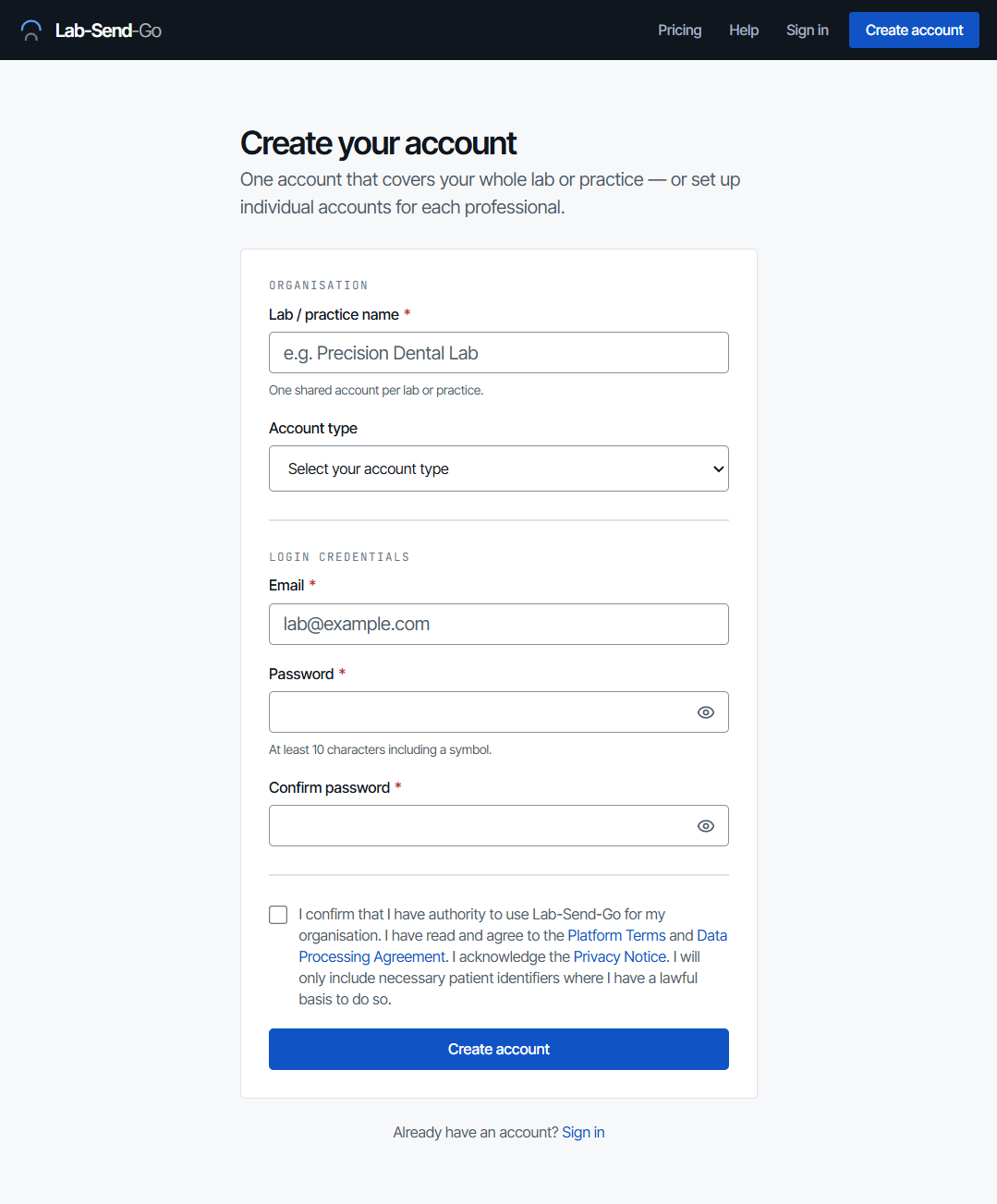
- Go to Create account, or select Create one free under the sign-in form.
- Enter your Lab / practice name. There is one shared account per lab or practice.
- Choose your account type: Lab, Practice or Dentist.
- Choose the Country your lab or practice is based in. Lab-Send-Go is currently only available in the United Kingdom.
- Enter your Email and a Password of at least 10 characters, then confirm the password.
- Tick the box to agree to the Platform Terms and acknowledge the Privacy Notice, then select Create account.
How do I confirm my email address?
After you register we email a confirmation link to the address you entered. Select the link in that email, then sign in. The link expires after 24 hours. If it has expired, or the email has not arrived, see I have not received an email.
Why am I asked to accept an agreement?
Lab-Send-Go handles dental case data, which can include health data about patients. Every account accepts the Platform Terms, the Privacy Notice and the Data Processing Agreement. When one of those documents is updated you are asked to accept the new version the next time you sign in, and you can read the full text before you accept. You can see what you have accepted under My account → Privacy & data.
Do I have to set up two-factor authentication?
Yes. After your first sign-in you are taken to Secure your account, and you cannot use the rest of the product until two-factor authentication is set up. You can choose:
- Authenticator app: scan the QR code with Google Authenticator, Microsoft Authenticator or another authenticator app, or type in the manual key.
- Email: receive a six-digit code at your confirmed email address each time you sign in.
Confirm your current password, enter the code, and select Verify authenticator code or Enable email verification. Full details are in Sign in and two-factor authentication.
What should I do after signing up?
Set your account up for the way you work: how you appear to recipients, your usual shade guide and scanner, your notifications and the practices you send to. Set up your account walks through each step and how to send your first transfer.
Which plan am I on?
New accounts start on the Free plan. Your plan is shown under your email address in the account menu and in My account → Billing. Paid plans add features and higher limits; the plans available are every plan. See Plans, allowance and link expiry.
I was sent an invitation. Does it change anything?
An invitation email from Lab-Send-Go can include a free trial of a paid plan. Register through the link in the invitation and the trial is applied to your account straight away, with no card needed. When the trial ends, the account returns to the free plan unless you have chosen a paid plan.
Related articles
- Set up your account After signing up: which options depend on your plan, transfer defaults, notifications, connections and your first transfer.
- Sign in and two-factor authentication Signing in, authenticator apps and email codes, trusted devices, password resets and recovering a lost authenticator.
- Download a transfer you were sent Open the emailed link, sign in with the address it was sent to, enter a password, download files and confirm receipt.
Still need help?
Email support@lab-send-go.com and tell us what you were trying to do. Never include a patient's name or a download link in your message.