Download a transfer you were sent
Open the emailed link, sign in with the address it was sent to, enter a password, download files and confirm receipt.
Written for Anyone receiving a case
When a lab or practice sends you a case through Lab-Send-Go, you receive an email with a secure download link. The email names the sender and their case reference and says how many files there are. Patient details are never in the email. They are only on the download page, behind the link.
How do I open the link?
- Select the download button in the email, or paste the address shown beneath it into your browser.
- Sign in to Lab-Send-Go with the email address the transfer was sent to.
- If the sender protected the link with a password, enter it and select Unlock.
- The download page opens.
Do I need an account to download?
Yes. Every download needs a free Lab-Send-Go account at the address the email was sent to. This shows who downloaded the case, which a forwarded link cannot.
- If you have no account, choose Create one free on the sign-in page and register with that address. Confirm your email, sign in, set up two-factor authentication, then select the link in the email again.
- If the email went to a shared inbox such as reception@, sign in with an account registered at that shared address, not your personal one.
See Create your account.
"This link was not sent to your account"
You are signed in with a different address from the one the transfer was sent to. Select Sign in with another account and sign in with the address the email arrived at. If you only have a personal account, ask the sender to send the case to that address instead.
"Password required"
The sender has added a link password. They share it separately from the email, for example by phone. Enter it and select Unlock. If you do not have the password, ask the sender. After several wrong attempts, wait a few minutes before trying again.
What can I do on the download page?
- Download any file on its own, or Download all as ZIP.
- Open the Work order PDF: the printable ticket with the full clinical instructions.
- Read the work order, case notes and any Message from sender on the page itself.
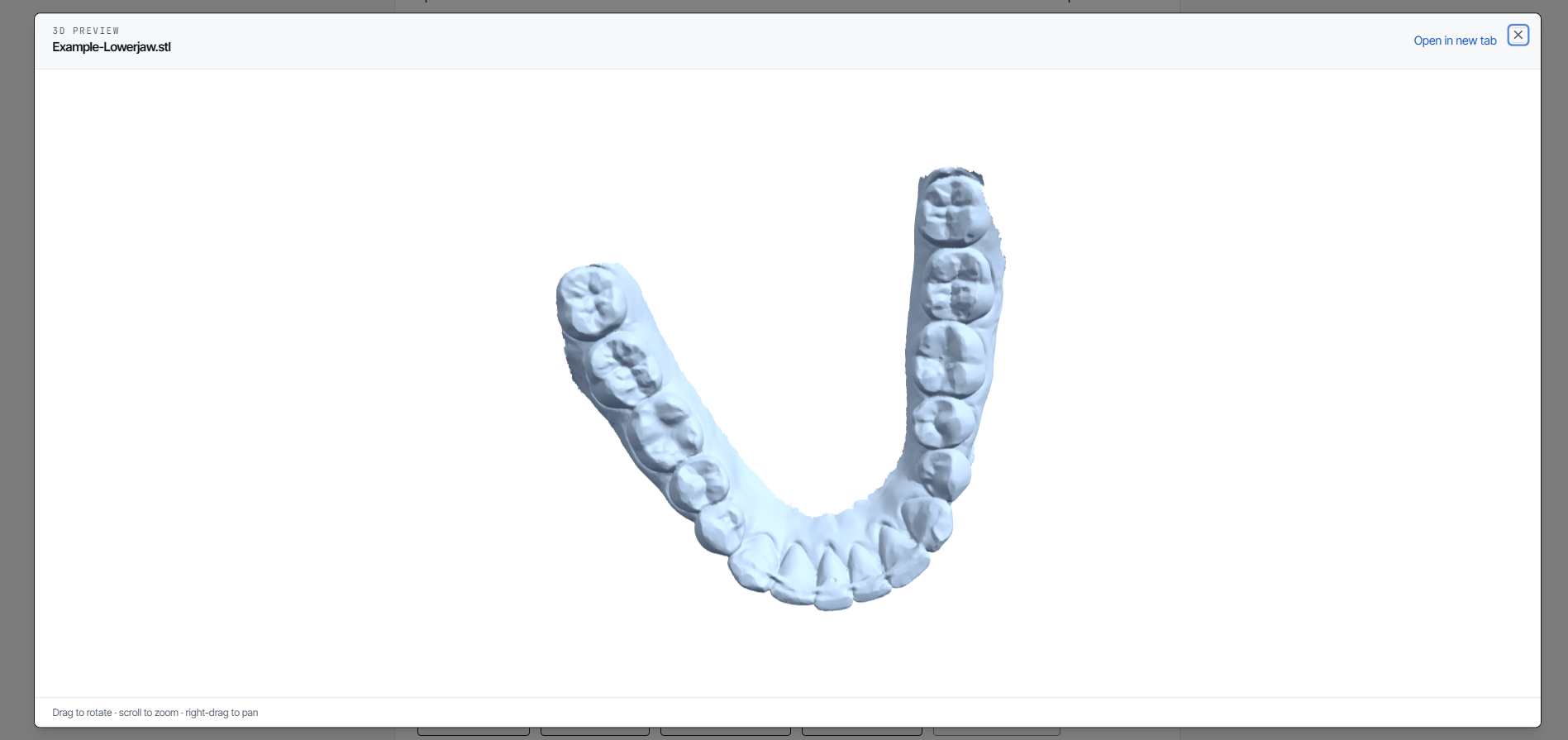
- Select Open 3D preview beside STL, OBJ and PLY scans, including scans inside a ZIP or RAR, to view the model in your browser without downloading it.
- Open or download individual files inside an archive without downloading the whole archive.
- Check Download availability to see how long the link works and when the hosted files will be deleted.
Reading the page and opening a 3D preview tell the sending lab you have viewed the case. Downloading a file, the ZIP or the work order PDF tells them you have collected it.
How do I tell the sender I have the case?
Under Confirm you have this case, add a note if you want to (for example "Received, will call about the shade") and select Confirm receipt. The sending lab sees your confirmation and note, which saves them chasing you. You can change the note later with Update note.
How do I send files back?
Under Send files back, select Return transfer. This starts a Simple-mode transfer back to the sender, already addressed and with the case reference filled in as Re: …. Add your files and send it as normal. It uses your own allowance when sent. Return transfers work on every plan. They stay available after the original link expires: open the case from Received and the expired page still offers Return transfer. They are not available once the sender has withdrawn the case or its files have been deleted.
"Transfer expired"
The download window has closed. The case still exists and the sending lab can reopen it, so ask them for access. If your own account is on Pro and Enterprise, you may be able to open it yourself from your Received list. See Recovered transfers.
"Transfer revoked"
The sender has withdrawn access, perhaps because it went to the wrong place or has been replaced. Contact them for a new link.
"Link not found"
The link is incomplete, or the sender has since resent the transfer. Each resend creates a new link and the old one stops working, so look for the most recent email from the sender. You can also find every transfer sent to your address in Received.
I have deleted the email. How do I get back to the case?
Sign in and open Received. Every transfer sent to your address is listed there, with an Open button for each one that is still available. See Work from your Received list.
Related articles
- Work from your Received list Find every case sent to your address, open expired links your plan can recover, and send files back with a return transfer.
- Create your account Register your lab or practice, confirm your email address, accept the agreements and set up two-factor sign-in.
- Troubleshooting and common questions Fixes for expired or broken links, missing emails, upload errors, allowance limits, sign-in problems and embedded forms.
Still need help?
Email support@lab-send-go.com and tell us what you were trying to do. Never include a patient's name or a download link in your message.